|
<< Click to Display Table of Contents >> BDE and Windows 11 |
  
|
|
<< Click to Display Table of Contents >> BDE and Windows 11 |
|
With Windows 11 the BDE Administrator does present some challenges.
Without tweaks you may experience the BDE Administrator behaving as Not Responding ... when trying to store changes.
However, with a few tweaks, the 32-bit BDE Administrator may actually behave quite neatly, also with Windows 11!
Here's how to prepare BDE for use with 64-bit Windows 10 and 11:
•Install the 32-bit BDE database engine in the usual way using a BDE installer.
•Decide where to keep your BDE configuration file (IDAPI.cfg or IDAPI32.cfg),
which may be anywhere except in the
C:\ root directory or in the programs folders (C:\Program Files and C:\Program Files (x86)).
You may for example choose and create:
C:\BDE\BDEshared
•Check that Windows Registry points to this folder for the BDE configuration settings:
Run the Windows Registry Editor ([Windows]+R), then type and run Regedit.exe.
•Search and open the Registry key:
"HKEY_LOCAL_MACHINE\SOFTWARE\Wow6432Node\Borland\Database Engine"
and open the value CONFIGFILE01
where you type the address and name for the BDE configuration file, as for example:
C:\BDE\Config\IDAPI32.cfg

•Next, check the correct DDL path for the Borland Database Engine (BDE):
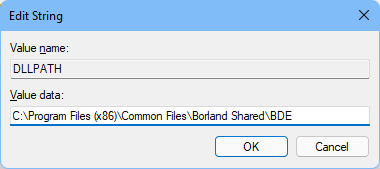
which may be different for your installation.
•Then close/save the Registry Key and exit Regedit.exe.
•Search the BDEadmin.exe executable, which you most likely will find in the folder:
C:\Program Files (x86)\Borland\Common Files\BDE
or
C:\Program Files (x86)\Common Files\Borland Shared\BDE
Right click on the executable  , and select Properties,
where you on the Compatibility tab will check the option [Run this program as an administrator]
•Now you may run the BDEadmin.exe:
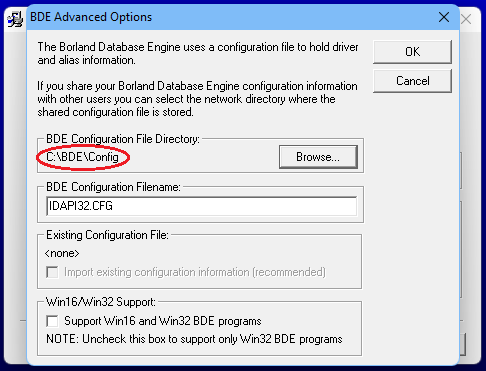
•If the BDE Admin has trouble accessing the configuration file, you may have to reinstall the BDE selecting the BDE Installer's Advanced option, where you would change the default location for the IDAPI32.cfg file to some location off the restricted C:\Program Files (x86) path as for example:
•Select the [Configuration] tab, and
select the Configuration\Drivers\Native\Paradox
•In the [Definition] pane you select [NET DIR], where you write the
desired location of the Paradox NetFile, as for example C:\BDE\BDEshared
•Close the BDEadmin.exe, where you may be asked to save the configuration as for example:
C:\BDE\BDEshared\IDAPI32.cfg
•And you are ready to go: Launch your Paradox / dBASE application, and enjoy.
Please see: Database connectivity.
__________________________